> ## Documentation Index
> Fetch the complete documentation index at: https://docs.apyguard.com/llms.txt
> Use this file to discover all available pages before exploring further.
# GitHub Actions
> Use GitHub Actions with ApyGuard to align API security scanning with engineering delivery workflows.
## Overview
GitHub Actions integration helps teams bring API security validation closer to code and release workflows.
Coordinate security checks with delivery and release activity.
Help engineering teams see security work in the same delivery ecosystem they already use.
## Connect GitHub Actions from the ApyGuard integrations panel
1. Go to **Settings → Integrations**.
2. Open the **CI/CD** tab.
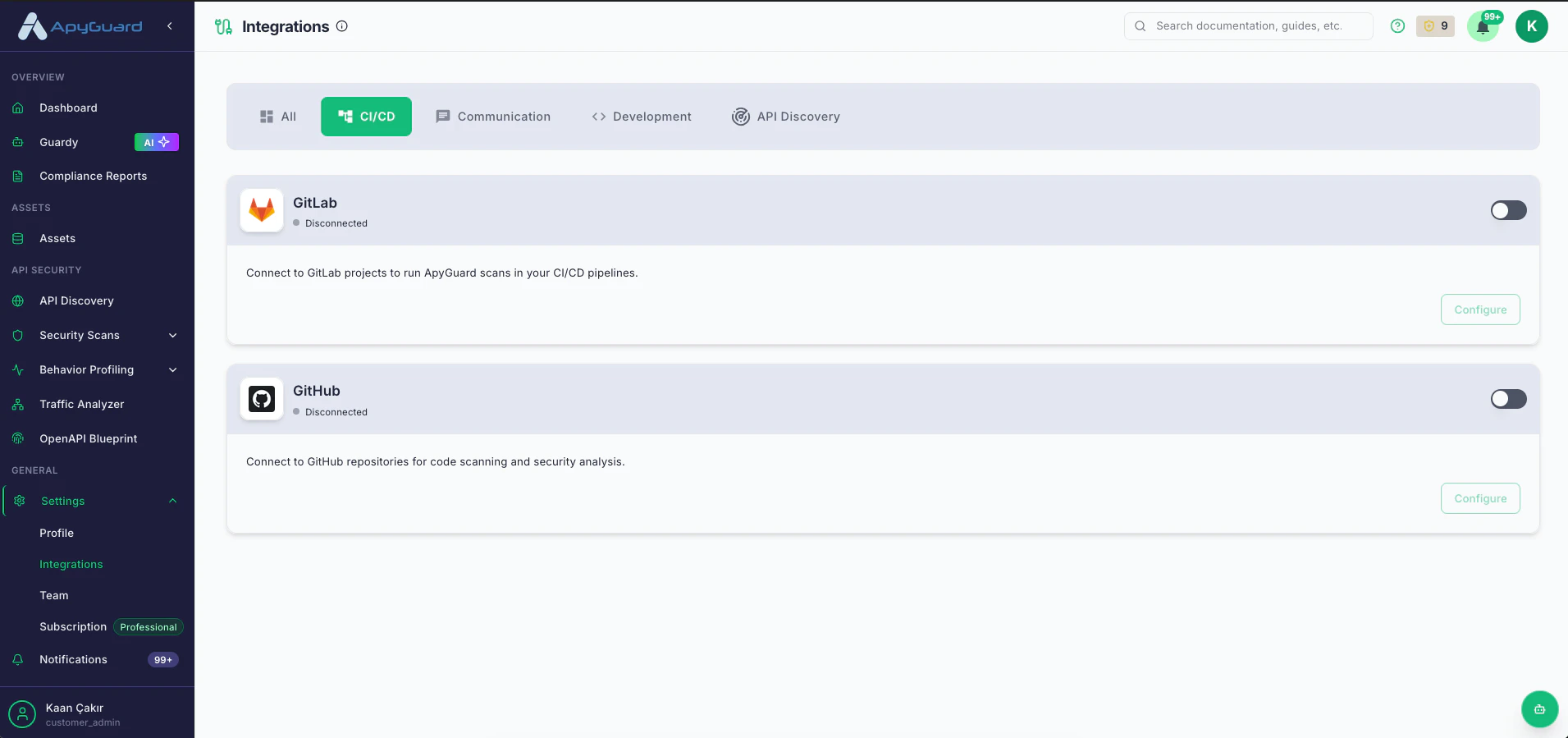 3. Find the **GitHub** card.
4. Click **Connect first** or turn the toggle on.
5. In the ApyGuard dialog, paste your **GitHub API key**.
3. Find the **GitHub** card.
4. Click **Connect first** or turn the toggle on.
5. In the ApyGuard dialog, paste your **GitHub API key**.
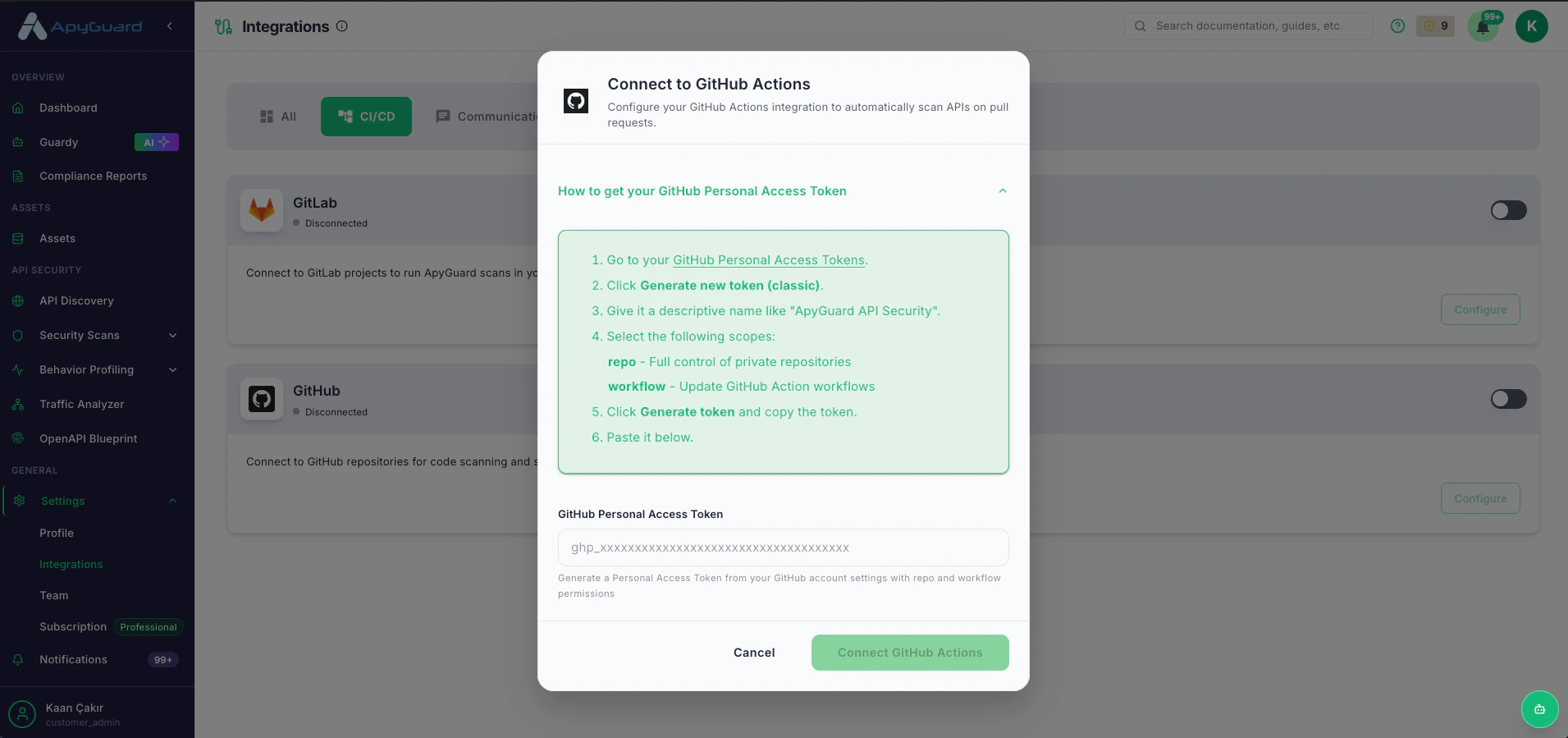 6. Click **Connect** to let ApyGuard store the configuration.
7. If ApyGuard shows you an **ApyGuard API key**, copy it and keep it for your GitHub Actions workflow setup.
6. Click **Connect** to let ApyGuard store the configuration.
7. If ApyGuard shows you an **ApyGuard API key**, copy it and keep it for your GitHub Actions workflow setup.
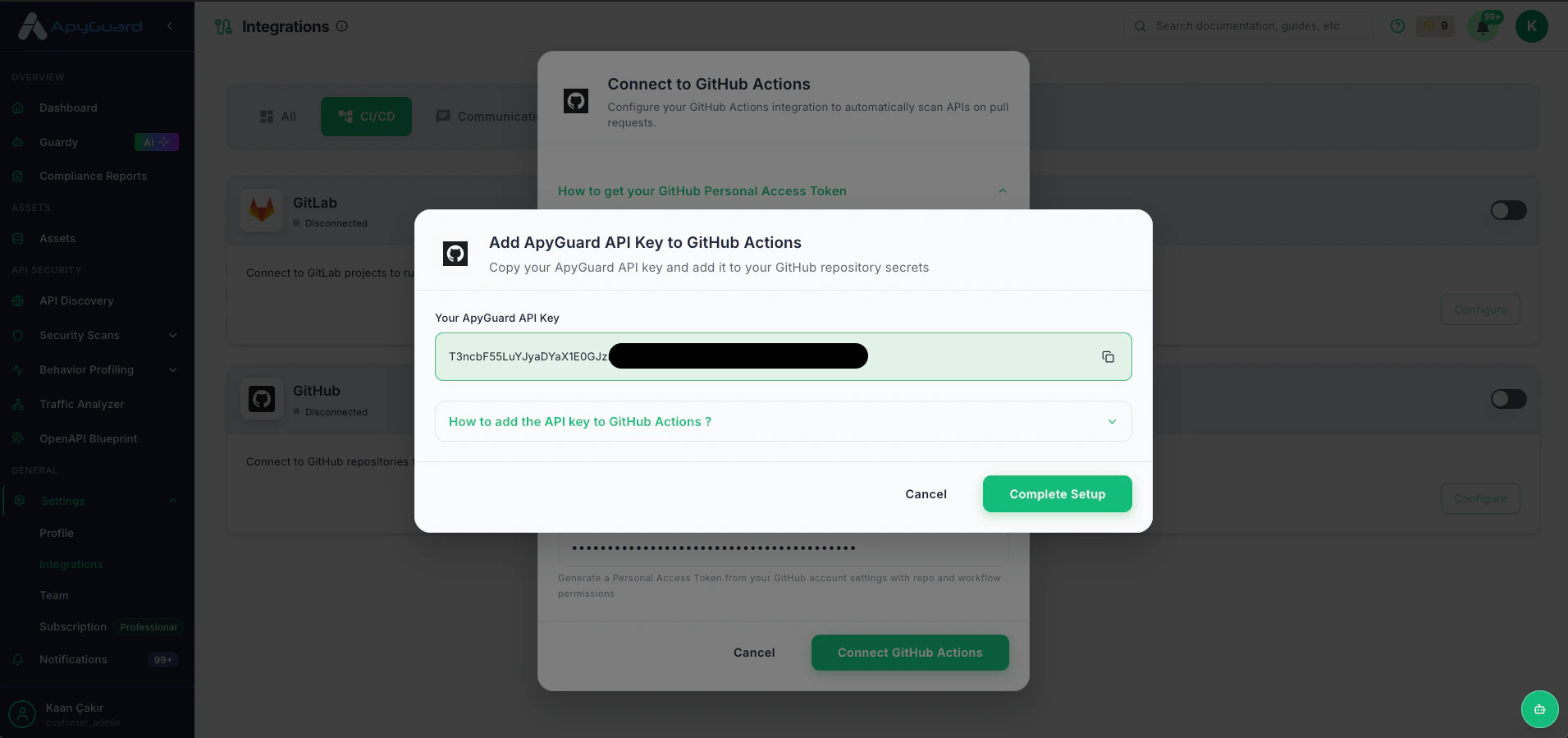 8. Click **Continue setup** in the dialog so ApyGuard can finish enabling the integration.
9. Return to the integrations panel and confirm the GitHub card now shows **Connected**.
## What the dialog asks for
* GitHub API key
## What happens after connect
The integration dialog connects your GitHub account details to ApyGuard so the platform can enable the provider integration.
ApyGuard can generate an API key during setup. This is intended for the GitHub Actions workflow side of the integration and should be copied when shown.
## Disconnect GitHub Actions
1. Go back to **Settings → Integrations**.
2. Find the **GitHub** card in the **CI/CD** tab.
3. Turn the toggle off.
4. Confirm the status changes from **Connected** to **Disconnected**.
## Related pages
* [Integrations Overview](/integrations/overview)
* [Scheduled Scan Tasks](/core-workflows/scheduled-scan-tasks)
8. Click **Continue setup** in the dialog so ApyGuard can finish enabling the integration.
9. Return to the integrations panel and confirm the GitHub card now shows **Connected**.
## What the dialog asks for
* GitHub API key
## What happens after connect
The integration dialog connects your GitHub account details to ApyGuard so the platform can enable the provider integration.
ApyGuard can generate an API key during setup. This is intended for the GitHub Actions workflow side of the integration and should be copied when shown.
## Disconnect GitHub Actions
1. Go back to **Settings → Integrations**.
2. Find the **GitHub** card in the **CI/CD** tab.
3. Turn the toggle off.
4. Confirm the status changes from **Connected** to **Disconnected**.
## Related pages
* [Integrations Overview](/integrations/overview)
* [Scheduled Scan Tasks](/core-workflows/scheduled-scan-tasks)